Most tuition teachers keep fees in a notebook, a spreadsheet or their memory, and all three have the same problem: by the end of the month, it's hard to say for certain who has paid for which class.
Class Tracker keeps a clear record of every class fee and every payment, connected to your classes and attendance. This guide shows how it works, from setting a fee to exporting your income for the year.
One thing to know first: Class Tracker records payments. It doesn't collect money. Parents keep paying you the way they do today, in cash or by bank transfer, and you record it.
Step 1: Set a Monthly Fee for Each Class
Every class has its own fee, set on the class's Fees tab. A fee has an effective date, so when you raise a fee from January, you add the new amount with a January date and the old fee keeps applying until then.
- The fee for a month is the one in effect on the 1st of that month.
- A fee can be removed only until its date has passed, so past months stay as they were.
- A fee is optional. For a class without a fixed fee, you simply enter the amount when you record a payment.
Step 2: Record Payments in One Click
The Finance page shows a class's students for the month you choose, with each student's status:
- Paid, with the amount and the date it was recorded.
- Unpaid, with a Mark paid button.
- Free pass, for students whose fee is waived that month.
When a student pays, press Mark paid. If you press it by mistake, undo it. Students pay per class per month, so a student in three of your classes has three fees each month, each tracked separately.
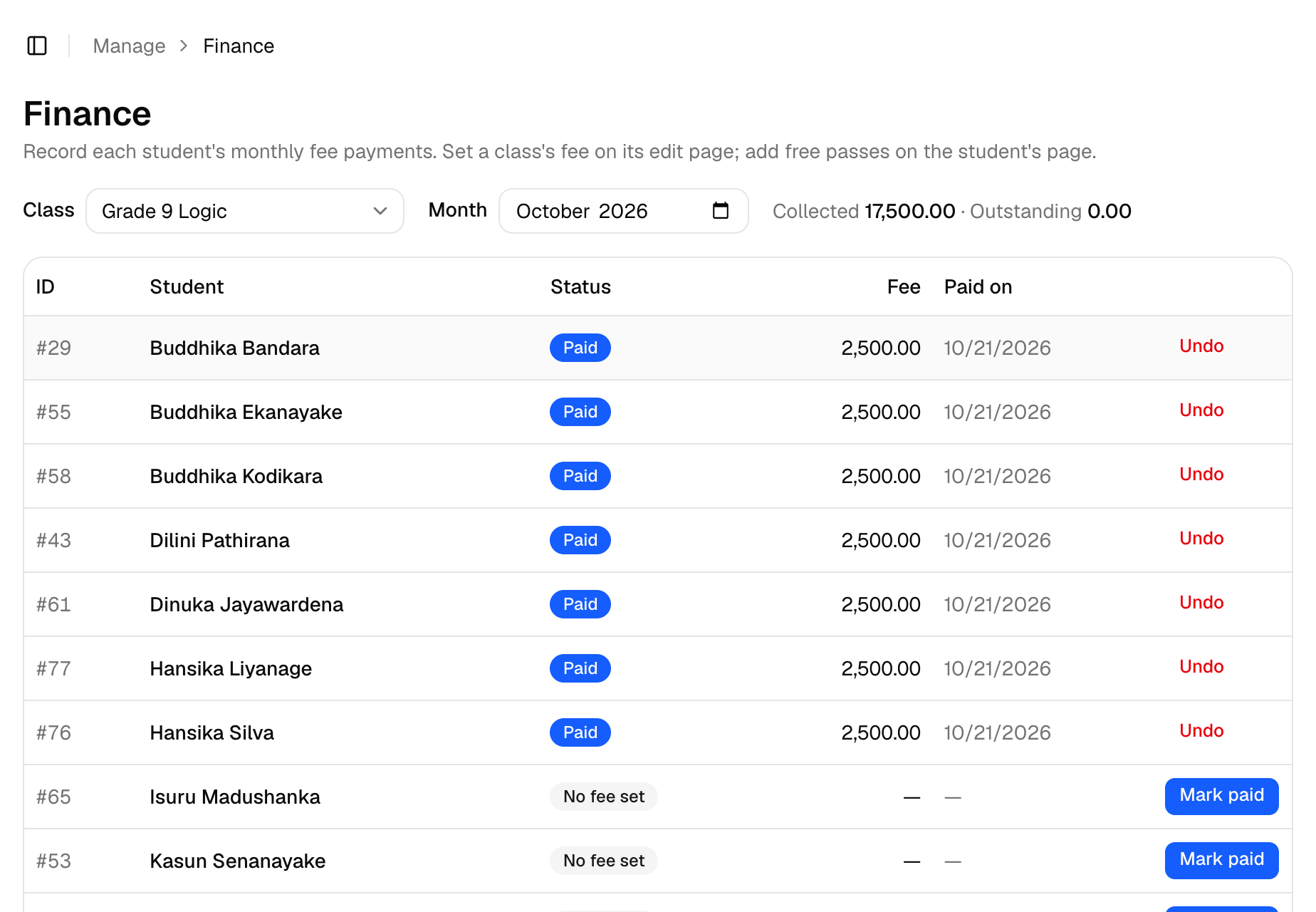
The fee payments screen for a class, with paid amounts, payment dates and Mark paid buttons.
Payments Keep Their Amount
When you record a payment, Class Tracker saves the amount actually paid. If you raise the fee next year, last year's payments don't change, so your income for a past month always stays the same.
Step 3: Give Free Passes and Discounts
Many teachers give a reduced fee to a student who's struggling, a family with several children, or a top performer. In Class Tracker, these are free passes, added on the student's page:
- Choose the first and last month the pass covers.
- Choose all of the student's classes, or only specific ones.
- Set a discount percentage: 100% waives the fee completely, 50% halves it.
- Add a reason, if you'd like to remember why.
A student with a 100% pass shows as on a free pass for those months. With a smaller discount, they show as unpaid for the reduced amount, which is what's recorded when they pay.
Check Fees While You Take Attendance
Fees and attendance are connected. While you mark attendance, each student's name is coloured by their fee status:
- Last month unpaid stands out first, so you can have a word before it grows.
- This month unpaid is shown after the 15th of the month.
- Fee paid and free pass show that there's nothing to chase.
When you scan a student's QR card, the pop-up shows the same status, with a button to mark the month paid if they hand you the money at the door.
Step 4: See Your Income for the Year
The Accounting page shows your class income by financial year, April to March, the same year the tax system uses in Sri Lanka. For every month you see:
- Collected: what was paid for that month.
- Expected: what you should receive from enrolled students.
- Outstanding: the difference.
- How many students paid, didn't pay, or had a free pass.
Open any month to see the same figures for each class.
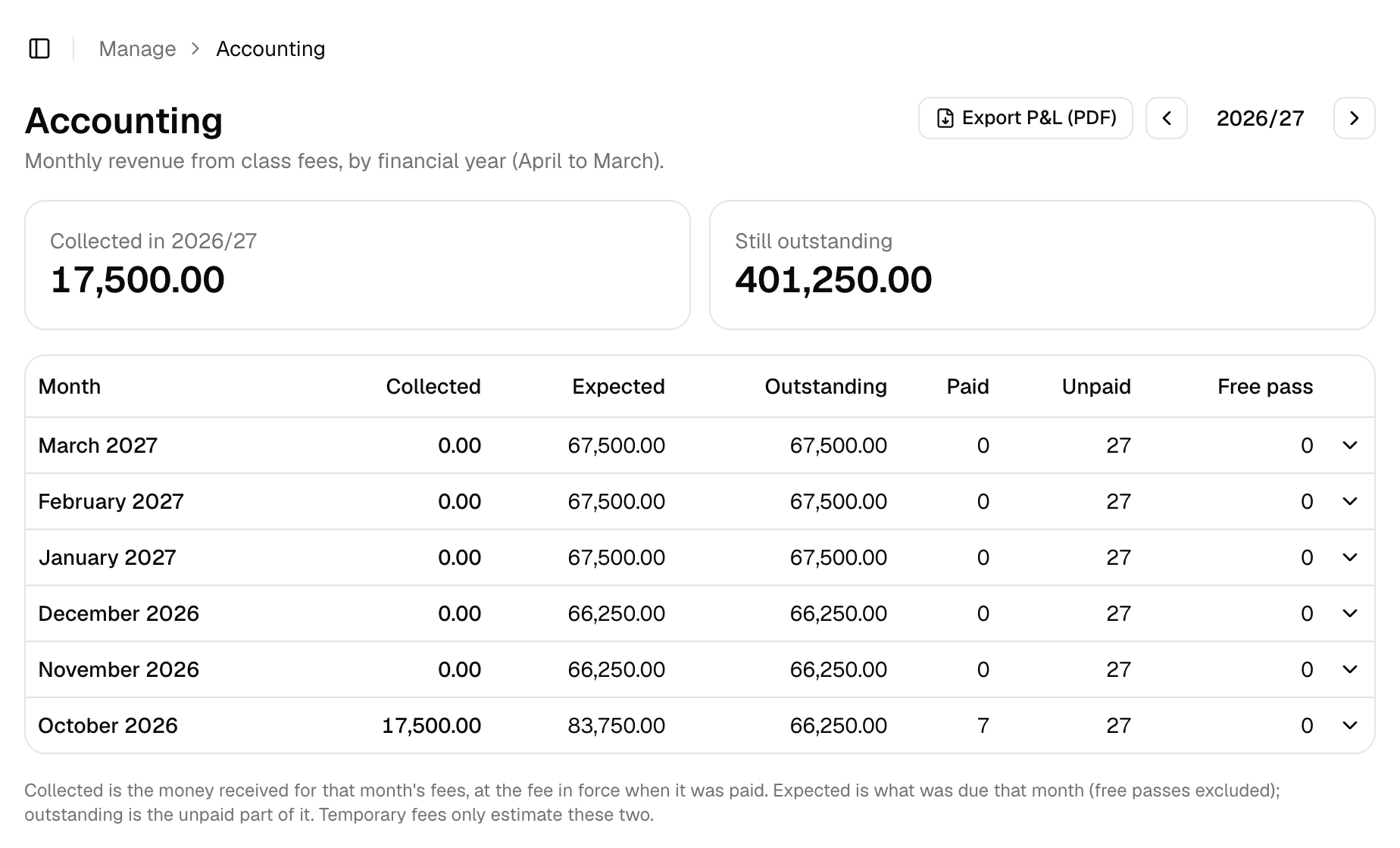
The accounting screen showing collected and outstanding amounts for the year, month by month.
When you need a record for your own accounts, Export P&L (PDF) creates a profit and loss statement for the year, with your revenue by class and by month. Class Tracker doesn't record expenses, so the statement shows your class income.
Parents See Their Payments Too
If you invite parents to the parent portal, they can see every payment recorded for their child, with the month and amount. When a parent says they paid for September, you're both looking at the same record.
Common Questions
Can I record a payment for an earlier month? Yes. Choose that month on the Finance page and mark it paid.
What happens to old records when I change a fee? Nothing. A new fee applies from its effective date, and past payments keep the amount that was actually paid.
Can an assistant record payments? Only if you want them to. Each assistant's access is set separately, so someone can mark attendance without seeing payments.
Looking for ways to get fees in on time, whatever tools you use? Read our guide to collecting tuition fees on time. More answers are in the payments FAQs.