Calling out sixty names at the start of an A/L class takes ten minutes you could spend teaching. A paper register is quicker, but it gets lost, gets wet, and can't tell you who has missed three Saturdays in a row.
QR attendance in Class Tracker replaces both. Each student carries a small ID card with a QR code. As they walk in, you scan the card with your phone and they're marked present. This guide walks through the whole process, from printing the first sheet of cards to scanning on a busy class day.
What You Need
- A phone, tablet or laptop with a camera. Class Tracker runs in the web browser, so there's nothing to install.
- A printer, or a print shop. Cards print on ordinary A4 paper or card.
- Optional: a handheld barcode scanner. Any standard USB or Bluetooth scanner that reads QR codes works, if you'd like to be even faster at the door.
- An internet connection while you mark attendance, so every device sees the same records.
Step 1: Print a Sheet of ID Cards
QR codes are created in batches, up to 100 at a time, from the QR codes page. Each batch has a Print cards button that lays the cards out ten to an A4 page, ready to print or save as a PDF for the print shop.
Every card carries your institute's name and logo, the QR code, and lines to write the student's name and phone number. The cards don't have names printed on them, which means you can print a stack in advance and hand them out as new students join.
The QR code itself holds only a random identifier. It carries no personal details, so a card that's dropped on the bus doesn't reveal anything about the student.
Tip: Laminate the cards or print them on thick card. A card that lasts the whole year saves you reprinting.
Step 2: Give Each Student Their Card
Write the student's name on a card, then link it to their record. There are two ways:
- From the student's record: open the student, then scan the card with your camera, or paste its ID.
- From the QR codes page: search for the student by their parent's phone number and assign the card.
A student has one active card at a time. Brothers and sisters each get their own card, even though they share one parent record.
Step 3: Scan at the Door
The Attendance page lists today's classes first, then the rest of the week. Open today's class and switch to QR scan.
Hold each card up to the camera. As soon as a code is read, the student is marked present and a pop-up shows who it was, so you can greet them by name. If a card is scanned twice, the pop-up simply says they were already marked present. If someone shows a code that isn't one of yours, it says so and closes by itself.
With a handheld scanner, it's even simpler: scan, and the student is marked. Keep the camera tab open and the scanner does the typing.
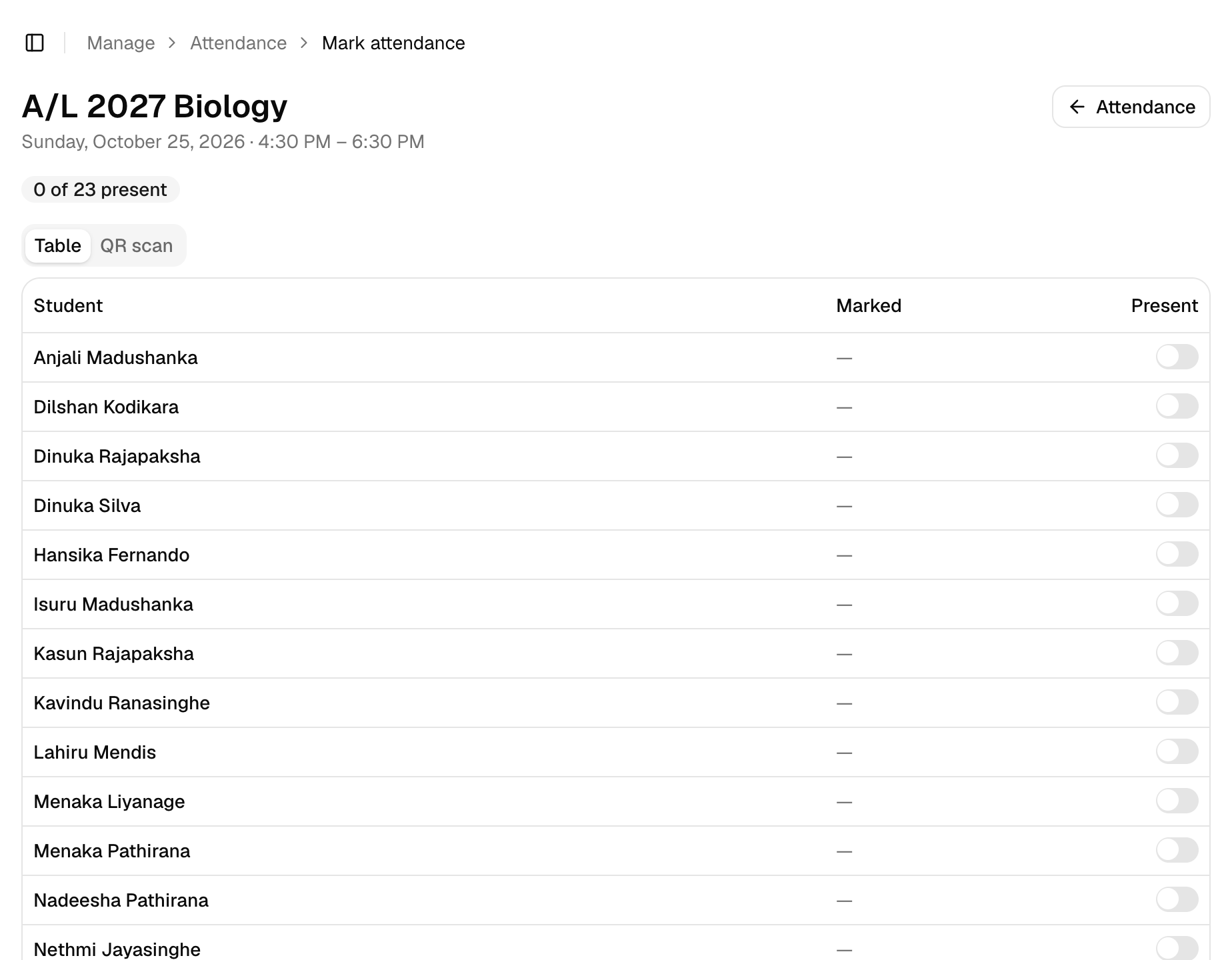
The attendance screen for a class, with Table and QR scan modes and a Present switch for each student.
When a Student Forgets Their Card
It happens every week. Switch to Table and turn on the Present switch next to their name. You can use both methods in the same class: scan everyone at the door, then tick the two students who forgot.
The table also shows how each student was marked, by QR scan or by hand, and when. If a parent ever asks whether their child really came on the 12th, you have the answer.
See Who Has Paid While You Scan
Attendance and payments are connected in Class Tracker. When a student's card is scanned, the pop-up also shows whether this month's fee is paid. If they hand you the money at the door, record it right there from the pop-up, without leaving the attendance screen.
In the table, names are coloured too: students who still owe for last month stand out, and so do those who haven't paid for this month after the 15th. You'll know who to have a quiet word with before class starts. Our guide to tracking class fees explains how fees and payments work.
Lost and Replaced Cards
When a card is lost, give the student a new one. Assigning the new card cancels the old one immediately, and a cancelled card can never be used again. Nobody else can pick up a lost card and get marked present with it.
If a card is damaged or handed out by mistake, you can also cancel it directly from the QR codes page.
The Rules That Keep Records Honest
Behind the scenes, Class Tracker checks every mark before it's saved:
- Only students enrolled in that class can be marked present.
- Attendance can only be marked for a day the class is actually held, and never for a future date.
- Each student is marked once per class per day, even if the class meets twice that day.
Simple rules like these mean your attendance record stays something you can rely on, months later.
What Happens With the Attendance Afterwards
Every scan goes into the student's history. On each student's page you can see every class they're enrolled in and their attendance, and open a class to see each session since they joined, present or absent.
If you invite parents to the parent portal, they can see the same history for their own child, without calling you to ask.
Common Questions
Do I need special hardware? No. A phone camera is enough. A barcode scanner is only for teachers who want extra speed at the door.
Can an assistant scan for me? Yes. An assistant can have their own login that only allows attendance, with no access to payments. See assistants and access.
What does it cost to print the cards? Only the paper. Class Tracker generates the cards; you print them wherever you like.
For more answers, see the attendance and QR card FAQs. If you're still weighing up QR cards against a register, our guide to taking attendance faster in large classes compares the options.